MiX16 apps
Pro and Lite
Unlimited cues. Unlimited projects.
14-day free trial. Yearly subscription or lifetime purchase.
Features
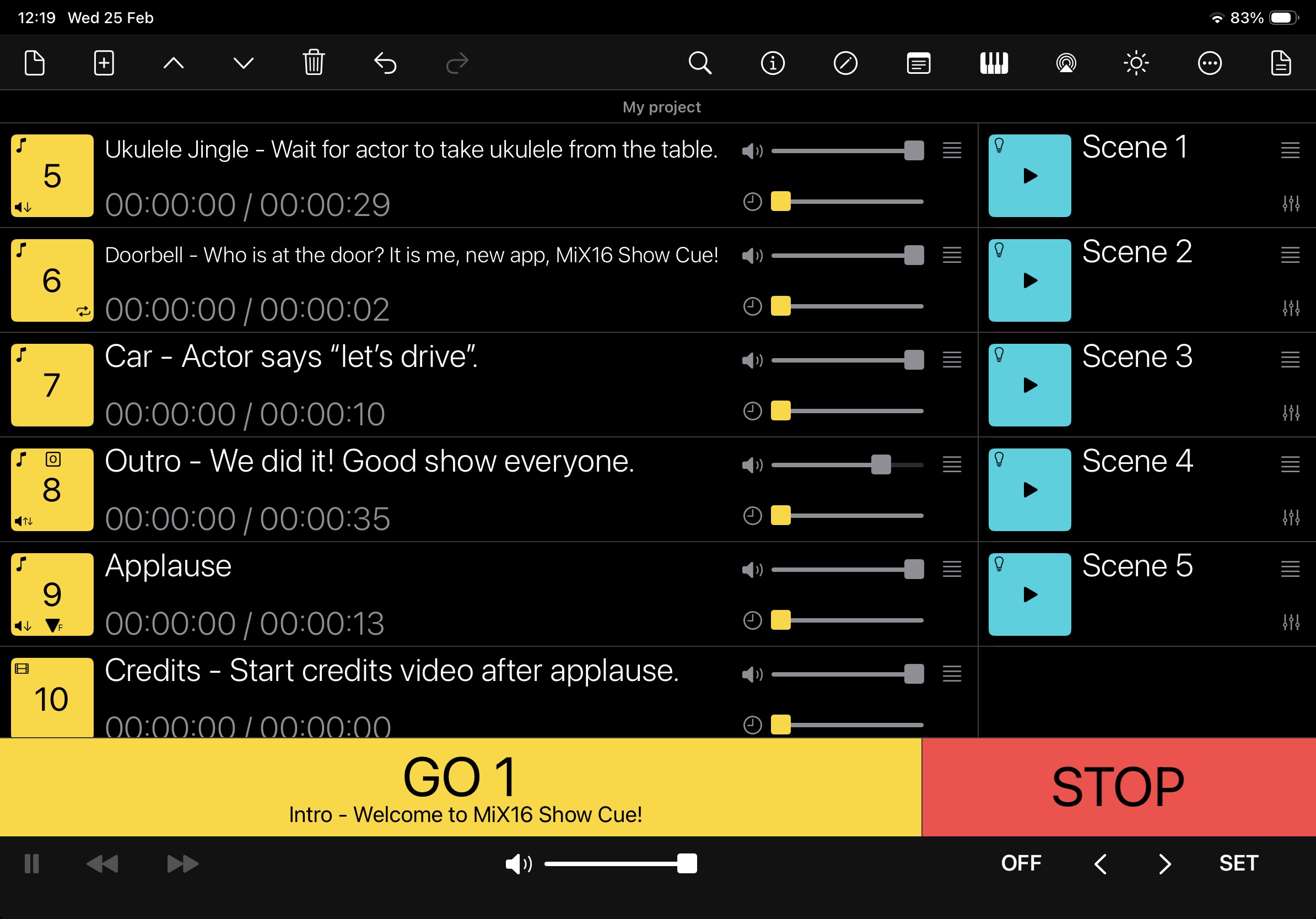
MiX16 Show Cue can play audio, MIDI, video and image files. Supported file formats: aif, aifc, aiff, caf, m4a, mp3, wav, flac, mid, mov, m4v, mp4v, mp4, jpg, jpeg, png, bmp and gif.
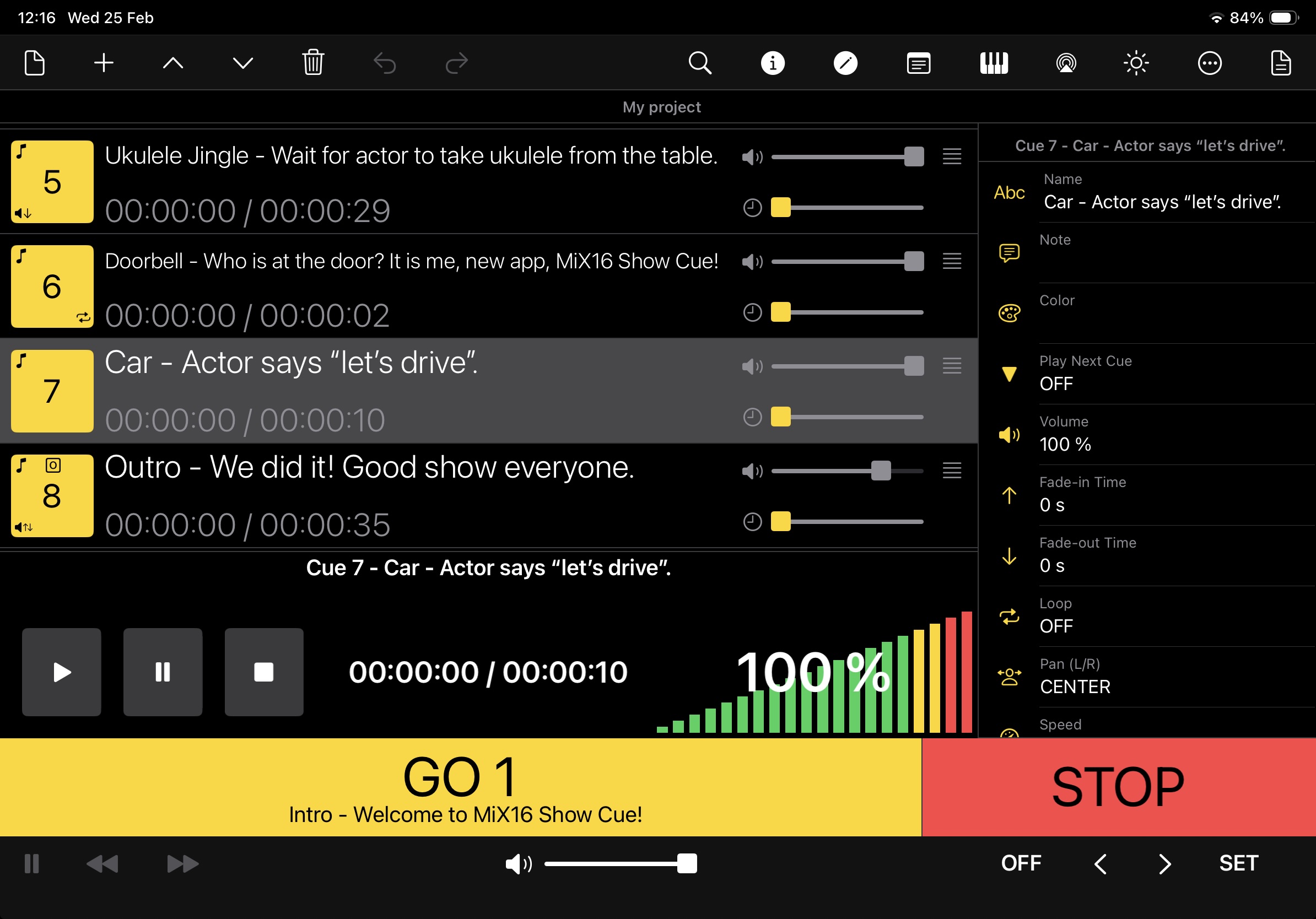
Industry-standard playback properties can be set for each multimedia cue: volume, fade-in time, fade-out time, loop and pan.*
*Some properties may vary depending on multimedia cue file type (audio, MIDI, video or image).
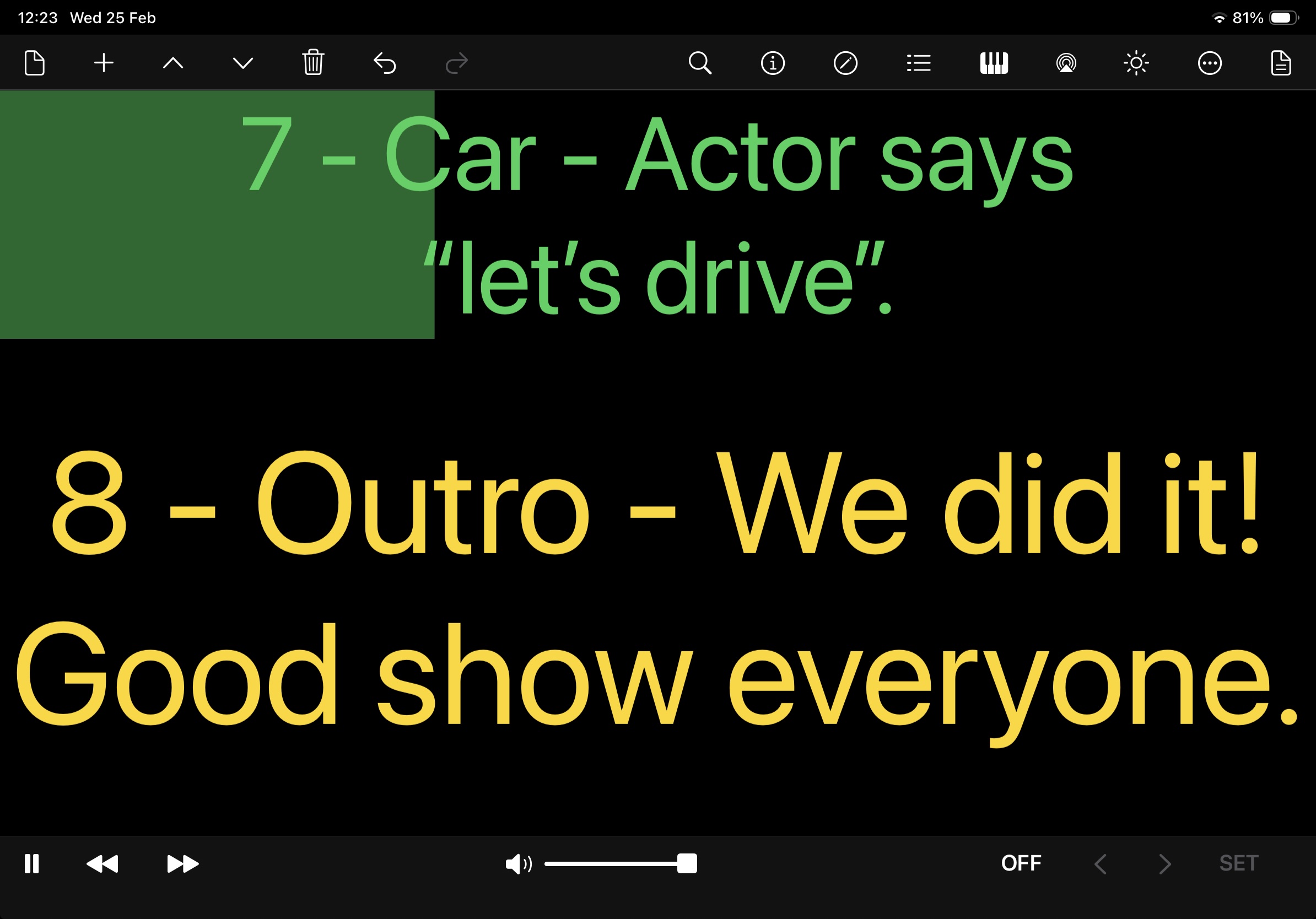
Enter text, choose the font, size and color, and display it on screen.
Each lighting cue can transmit DMX512 lighting data over Ethernet using the Art-Net protocol.
DMX512 lighting data can be configured with 512 channels plus a master channel.
A time property can also be set for each lighting cue to create smooth transitions between lighting scenes.
Use an internal or external microphone and camera to capture and play audio and video in real time.
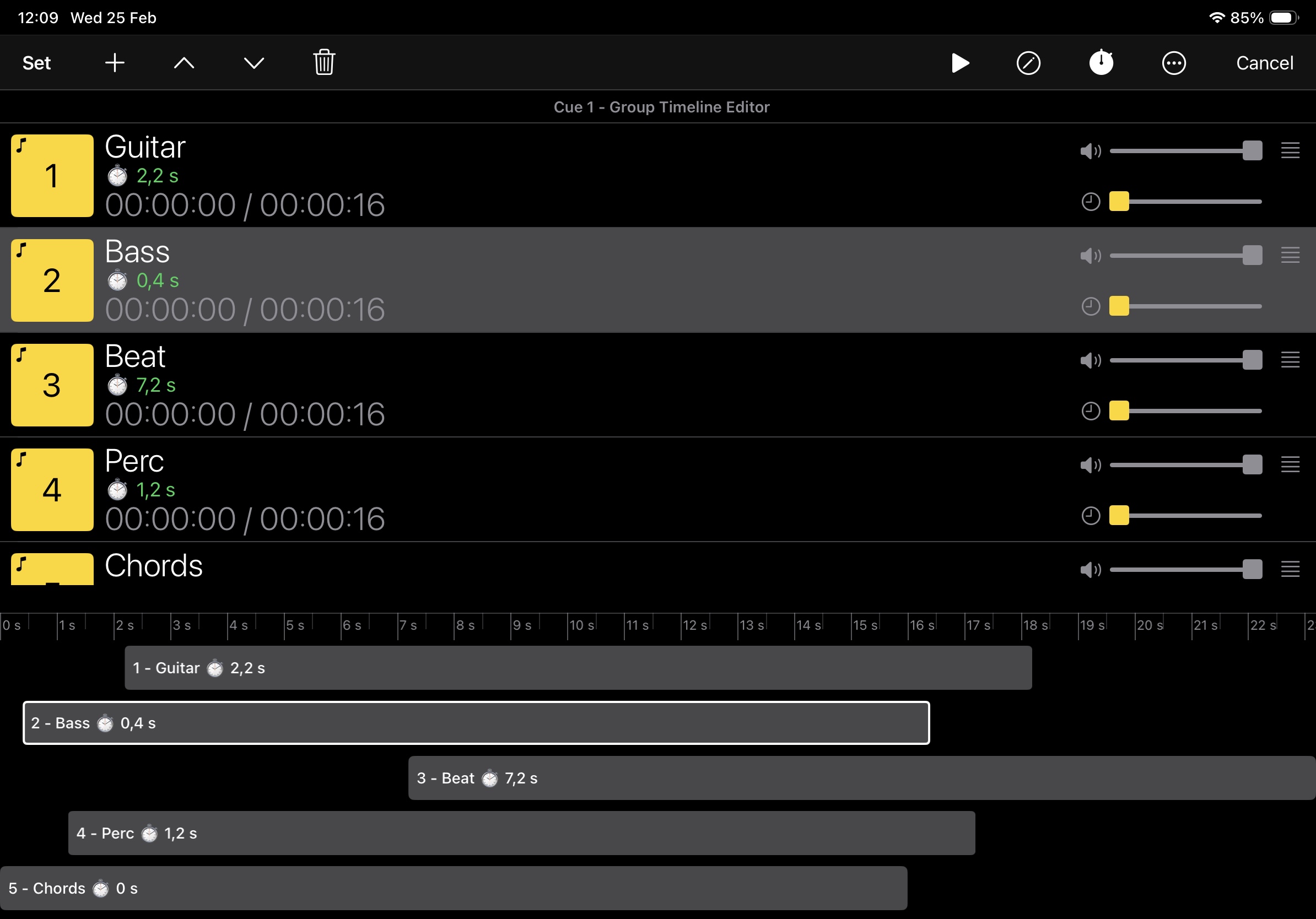
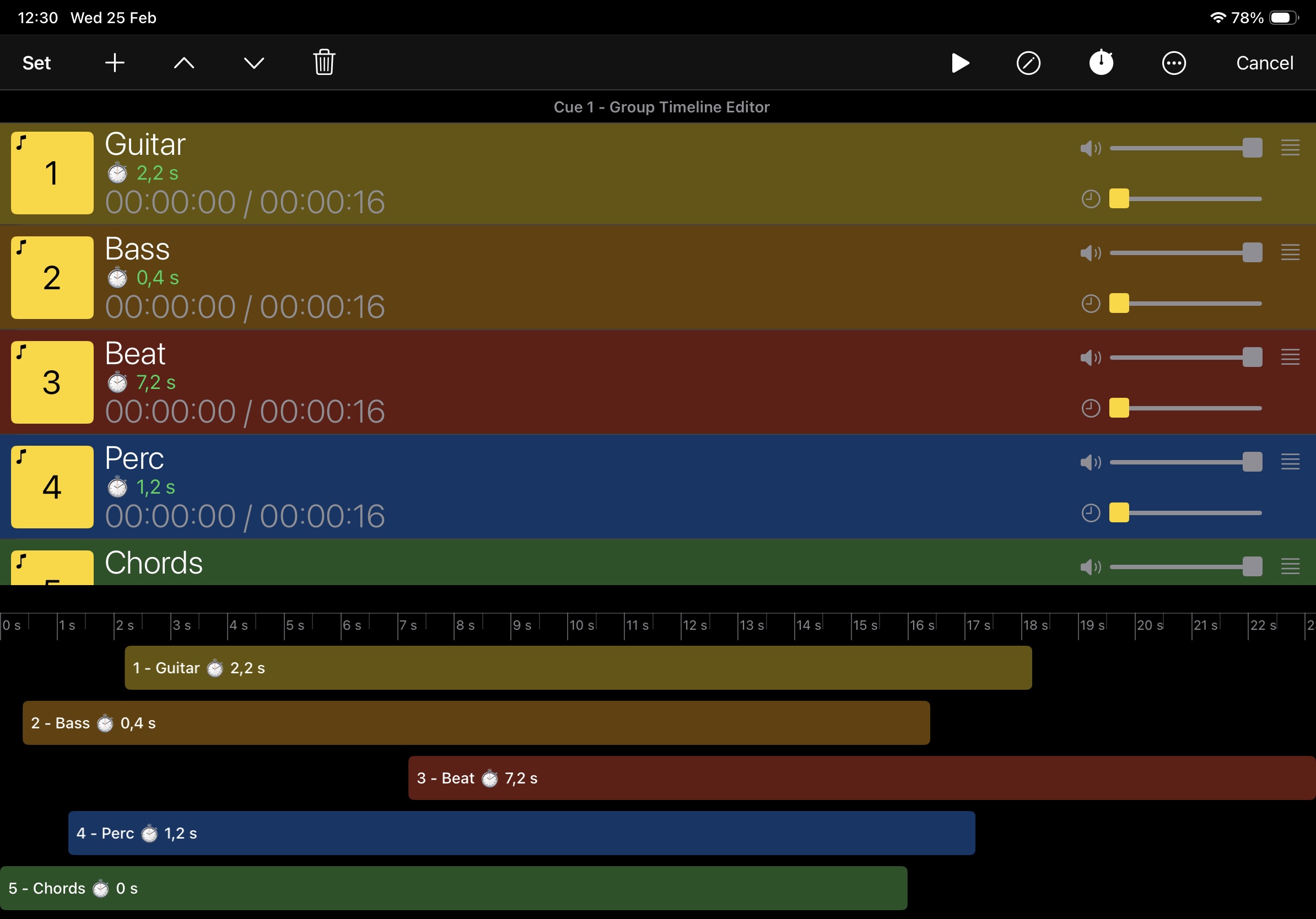
Create a pre-show music playlist, lighting sequence, or other group of cues, with only one cue required in the main playlist.
Organize your main playlist into sections. Use Section cues to move, duplicate or delete entire sections and quickly navigate between them during a show.
MiX16 Show Cue has four built-in types of automation cues: time cue, volume cue, pan cue and command cue.
Time cue - set duration.
Volume cue - set start volume, end volume and transition duration for a selected audio cue, video cue, master volume or lighting master.
Pan cue - set start pan, end pan and transition duration for a selected audio cue.
Command cue - set play, pause or stop actions for a selected cue, or general playback actions such as GO <cue number> or Stop All Cues.
MiX16 Show Cue can be controlled using a keyboard, MIDI and OSC.
MiX16 Show Cue can also control other MIDI and OSC applications and devices.
Supported MIDI connections: USB, Bluetooth and local network.
Supported OSC connections: local network.
Although this website is available in English only, MiX16 Show Cue is available in English, German, French, Italian, Spanish, Japanese and Slovenian.
Frequently asked questions
No. Your MiX16 Show Cue purchases and subscriptions work across all your compatible devices using the same Apple Account.
Yes, but we strongly recommend using local storage (On My iPhone / On My iPad) for multimedia files.
If you use iCloud Drive, make sure all multimedia files are downloaded to your device before the show.
Tap or click the cue play button. A window will show you where the multimedia file is located.
Use the Files app on iPhone or iPad, or Finder on Mac, to copy the file back to its original location. If using iCloud Drive, make sure the file is downloaded to your device. You can also use the Browse... button to select a new multimedia file.
Don't worry - all cue settings will remain unchanged.
If sound is distorted when playing audio over Bluetooth, disable Live Input.
Open the Tools menu and select Settings. Scroll down to Live Input, change it from ENABLED to DISABLED, save the settings and restart the app.
Any Art-Net to DMX hardware that works over Ethernet can be used. For example Showtec NET-2/5 Pocket or Enttec ODE Mk3.
USB DMX devices are not supported.
Support
If you have a problem, suggestion or anything else, please send us an email to info@mix16apps.com or fill this contact form.
Privacy policy
MiX16 Show Cue Pro and MiX16 Show Cue Lite are commercial applications for iPhone, iPad and Mac created by Gregor Krasevec.
MiX16 Show Cue Pro and MiX16 Show Cue Lite do not collect, store or share any personal information.
The apps do not use third-party analytics, advertising or tracking services.